Dark mode
Signing in and out
How to get into the system, where you land, and what to do if you forget your password.
Who: Everyone with a staff or student account.
You need: Your username (or email) and your password.
Sign in
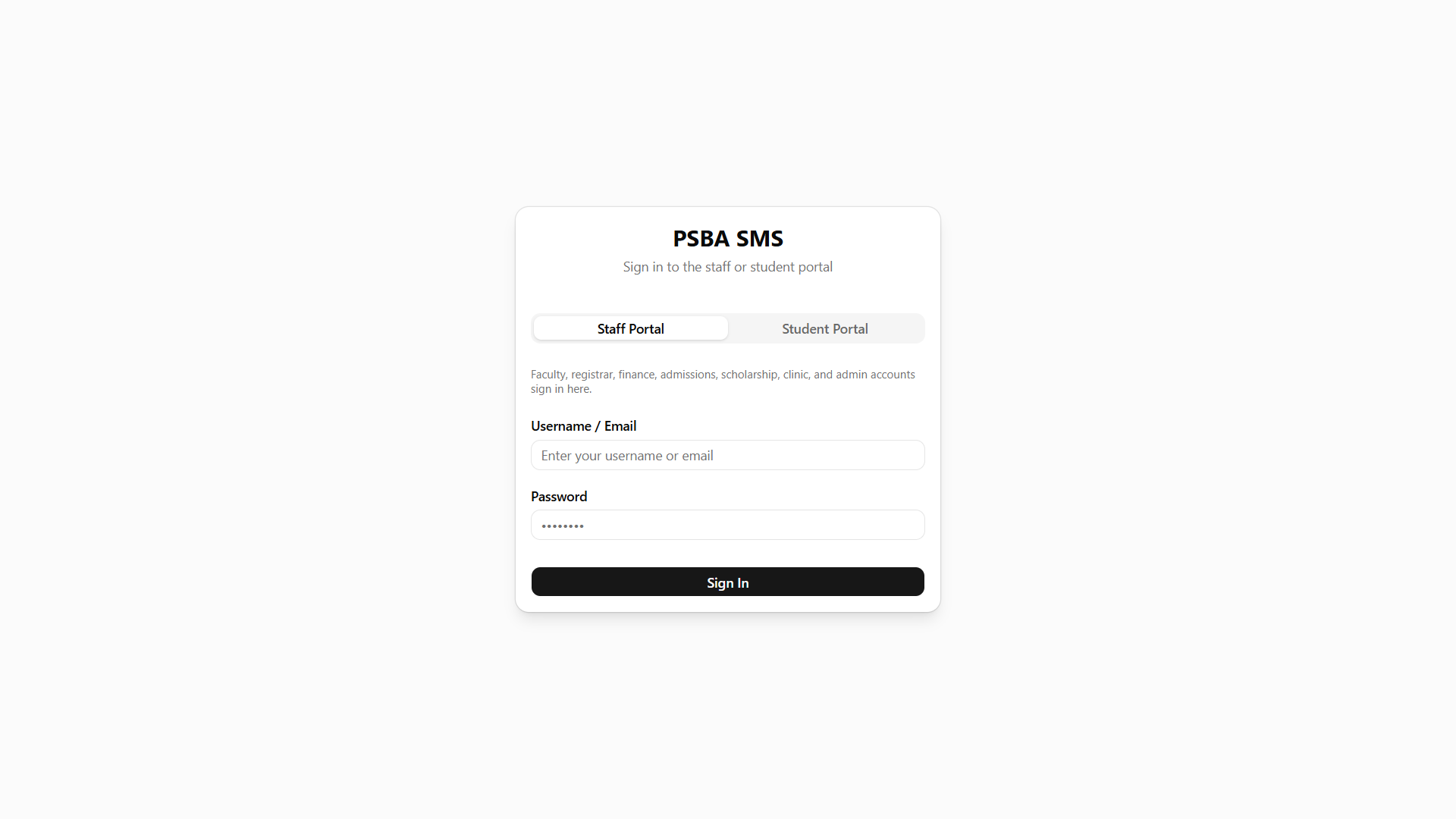
- Open the PSBA SMS website in your web browser (Chrome, Edge, Firefox or Safari).
- Choose the correct tab:
- Staff Portal if you work at PSBA.
- Student Portal if you are a student.
- Type your Username / Email. You can use either one.
- Type your Password.
- Click Sign In.
Where you land after signing in
The system opens the page that fits your job:
| If you are… | You land on… |
|---|---|
| A student | Your Student Dashboard |
| A faculty member | The Faculty Dashboard |
| A department head (and not faculty) | The Deficiency Tagging page |
| Any other staff | The Operations Dashboard |
If you have more than one job (for example, you teach and also work in the Registrar's Office), you will land on the Faculty Dashboard. You can still reach your other pages from the menu on the left.
Sign out
- Click your name or picture in the top-right corner.
- Click Sign out.
Always sign out on shared computers
Signing in does not time out by itself. If you walk away from a shared computer without signing out, the next person can use your account. Always sign out, then close the browser.
Forgot your password?
There is no "Forgot password" link on the sign-in page. Instead:
- Staff: ask your system administrator to set a new password for you.
- Students: ask the Registrar's Office. They can give you a new password. See Reset a student's password.
Change your password
- Students: in the Student Portal, open Change Password. Type your current password, then your new password twice. It must be at least 8 characters.
- Staff: open My Profile (Faculty menu), type a new password, and save. See Your dashboard and profile.
If signing in doesn't work
| What you see | What it means | What to do |
|---|---|---|
| "Wrong username or password" | Something you typed is wrong | Check your spelling and Caps Lock. Make sure you're on the right tab (Staff or Student). |
| "Invalid Login" | Same as above, on the Student Portal tab | Same as above |
| "Please enter your username and password." | A box is empty | Fill in both boxes |
| You're sent back to your dashboard when you open a page | Your role can't open that page | Ask your administrator if you should have access |
| A menu is missing after you were given a new role | The screen hasn't refreshed yet | Reload the page, or sign out and sign in again |
Keep your password private
Never share your password, write it on a sticky note, or send it by chat or email. Staff will never ask for your password.